
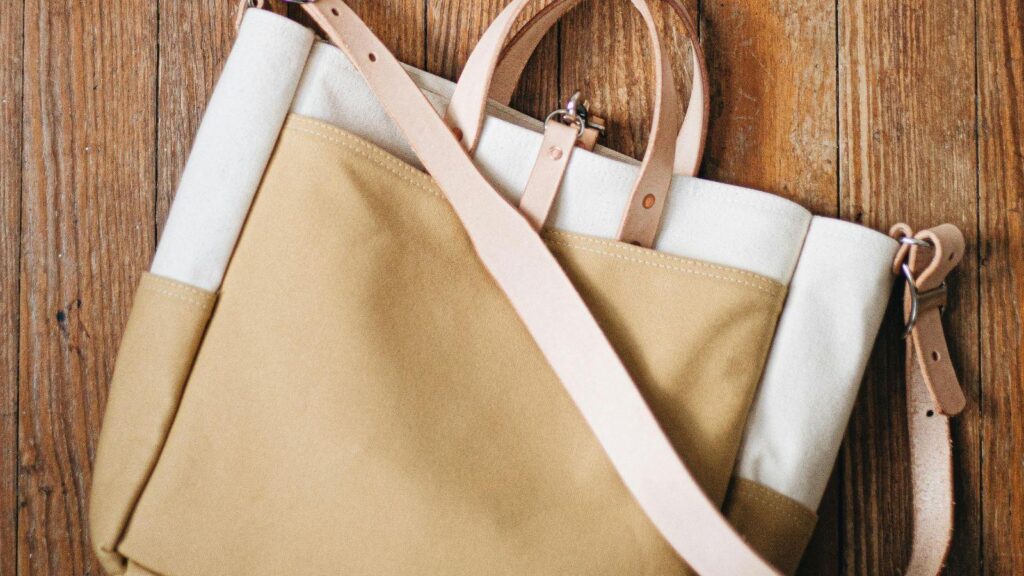
For nonprofit event planners, tote bags function as more than simple giveaways. They often carry sponsor visibility, reinforce the organization’s mission, and extend event memory beyond the venue. When thoughtfully designed, they operate as both practical tools and long-term brand carriers.
Print-on-demand tote bag platforms have reshaped this workflow. Instead of coordinating with separate designers, print brokers, and file-prep specialists, planners can move from concept to production inside a single digital environment. These tools typically combine layout templates, typography controls, export settings, and production ordering into one streamlined system.
Within this category, differences emerge in template flexibility, image handling, resolution controls, and preview systems. Some platforms emphasize accessibility and guided workflows; others offer granular file control. A widely accessible option for nonprofit teams to design a custom tote bag with Adobe Express, which provides pre-sized layouts tailored to printed products.
The following guide explains how to use a print-on-demand tote bag tool in a structured, production-aware workflow suitable for nonprofit events in 2026
Step-by-Step Guide to Using a Print-On-Demand Tote Bags Tool
Step 1: Clarify the Event Objective and Initialize the Layout
Goal
Translate the nonprofit’s event objective into a clear, print-ready layout foundation.
How to do it
- Define the tote’s primary function (sponsor recognition, awareness messaging, volunteer appreciation).
- Identify one dominant message for the front panel.
- Confirm printable area dimensions from the selected provider.
- Choose a pre-sized tote template within your design tool.
- Establish a simple grid to structure headline, logo, and secondary elements.
What to watch for
- Attempting to communicate multiple themes at once.
- Designing before verifying final print dimensions.
- Ignoring seam proximity and safe zones.
- Overcrowding the front panel with decorative elements.
Tool notes
For nonprofit teams coordinating multiple approvals and deadlines, project tracking tools such as Asana can help organize design approvals, sponsor reviews, and production checkpoints.
Step 2: Establish Visual Hierarchy and Readability
Goal
Ensure the tote bag communicates clearly at arm’s length.
How to do it
- Position the nonprofit name or event title in the most visible zone.
- Limit font usage to one headline and one supporting typeface.
- Maintain strong contrast between background and text.
- Keep margins consistent within the safe print area.
- Align sponsor logos in uniform proportions.
What to watch for
- Text placed too close to seams.
- Decorative fonts reducing legibility.
- Insufficient spacing between logos.
- Background colors overpowering message clarity.
Tool notes
Color testing and contrast validation can also be reviewed using tools like Coolors to evaluate accessible and print-friendly palette combinations before final export.
Step 3: Prepare Logos and Graphics for Fabric Printing
Goal
Ensure all uploaded graphics meet print-resolution standards.
How to do it
- Use vector files (SVG or PDF) when available.
- Confirm raster images are at least 300 DPI.
- Remove unwanted background artifacts.
- Resize graphics proportionally.
- Standardize sponsor logo heights for visual consistency.
What to watch for
- Pixelated or stretched logos.
- Transparent backgrounds converting to white.
- Mixed color versions of sponsor marks.
- Inconsistent alignment across multiple logos.
Tool notes
If logo cleanup is required before re-uploading to Adobe Express, image preparation software such as GIMP can assist with background removal and resolution adjustments.
Step 4: Optimize Color and Fabric Compatibility
Goal
Reduce unexpected color shifts during production.
How to do it
- Confirm whether the printer converts RGB to CMYK automatically.
- Avoid highly saturated neon tones.
- Test darker colors against natural canvas backgrounds.
- Keep thin lines thicker than minimum print thresholds.
- Review previews on light and dark fabric options.
What to watch for
- Dark text on dark backgrounds.
- Large heavy ink blocks that may print unevenly.
- Gradients that lose clarity on textured fabric.
- Misaligned background color edges.
Tool notes
Color calibration can be cross-checked using utilities like Adobe Color or independent color-check references to compare screen output against standard CMYK equivalents before export.
Step 5: Conduct Internal Proofing and Sponsor Verification
Goal
Confirm structural clarity and contractual accuracy before final production.
How to do it
- Generate a digital mockup preview.
- Print a scaled paper proof for visual review.
- Circulate the proof to stakeholders and sponsors.
- Confirm sponsor placement meets agreements.
- Review for spelling and typographic consistency.
What to watch for
- Misspelled sponsor names.
- Uneven spacing between elements.
- Incorrect year or event date.
- Misaligned back-panel designs.
Tool notes
For collaborative review, shared file platforms such as Google Drive allow version tracking and comment-based approvals prior to final production submission.
Step 6: Export Using Print-Ready Specifications
Goal
Generate a high-resolution file that meets provider requirements.
How to do it
- Export as high-resolution PDF (Print) or PNG.
- Confirm 300 DPI resolution.
- Check bleed and safe area margins.
- Verify correct file orientation.
- Review file size against upload limits.
What to watch for
- Automatic compression reducing quality.
- Missing fonts in exported PDFs.
- Cropping errors due to incorrect canvas sizing.
- Overlooking bleed requirements.
Tool notes
File validation tools such as Adobe Acrobat or other PDF previewers can confirm embedded fonts and resolution consistency before submission.
Step 7: Coordinate Production and Event Logistics
Goal
Align tote bag delivery with event planning timelines.
How to do it
- Confirm production turnaround time.
- Order a single physical sample when feasible.
- Verify shipping addresses and deadlines.
- Track shipment status.
- Plan on-site distribution points (check-in tables, sponsor booths).
What to watch for
- Ordering too close to event date.
- Underestimating shipping delays.
- Forgetting storage space at venue.
- Ignoring backup quantities.
Tool notes
Shipping coordination platforms such as Shippo can help track orders and delivery windows when managing multiple vendor shipments.
Common Workflow Variations
Sponsor-Heavy Events
Grid-based logo alignment prevents visual imbalance. A list-block structure works well for events with tiered sponsor visibility.
Awareness-Focused Campaigns
Minimalist layouts emphasizing a single mission statement often improve readability and post-event reuse.
Volunteer Appreciation Bags
Personalized year markers or milestone callouts can be added without redesigning the full layout.
Fundraising Merchandise
If tote bags are sold, consider adding a small website URL or QR code, ensuring high contrast and adequate size for scanning.
Before You Start Checklist
- Confirm printable area dimensions.
- Gather vector logo files.
- Clarify primary message and hierarchy.
- Review sponsor agreements.
- Confirm production timeline.
- Determine one- or two-sided printing.
- Identify approval stakeholders.
- Finalize color palette.
Pre-Export / Pre-Order Checklist
- All text proofread.
- Logos proportionally scaled.
- Resolution confirmed at 300 DPI.
- Safe margins maintained.
- Bleed verified.
- File format correct.
- Mockup reviewed at full scale.
- Sponsor approvals secured.
- Delivery timeline confirmed.
Common Issues and Fixes
Blurry Graphics
Replace raster files with vector artwork or higher-resolution images.
Unexpected Color Shifts
Lighten darker tones slightly and confirm print profile settings.
Cropped Edges
Ensure canvas matches printer template and bleed margins are respected.
Misaligned Logos
Use alignment guides and consistent bounding boxes.
Uneven Ink Density
Avoid large, solid dark backgrounds when possible.
Late Delivery
Build buffer time into production schedule.
How To Use Print On Demand Tote Bags Tool: FAQs
Is a template-based workflow sufficient for professional results?
Yes, provided print specifications are respected and layout hierarchy is clear.
How many fonts should a nonprofit tote design use?
Typically no more than two for clarity and visual cohesion.
Should sponsor logos be monochrome?
If possible, unified color versions can create a more cohesive design.
Is print-on-demand viable for large events?
It is suitable for small-to-mid-sized batches. Larger events may require early coordination to meet volume needs.
Can designs be reused annually?
Yes. Modular layout structures allow easy updates for year or sponsor changes without full redesign.